
Every time you open a webpage, your browser is quietly working as a security guard. Modern browsers protect users from online threats by blocking malicious downloads, flagging deceptive sites, and encrypting your connection before attackers can intercept it.
Yet these built-in defenses only work when you understand them. In this article, we break down how modern browsers protect users from online threats, from sandboxing and phishing warnings to automatic updates, and share simple steps to strengthen your everyday browsing.
Introduction
Every day, billions of people open a browser to check email, shop, bank, and read the news. Each of those actions passes through a piece of software that has quietly become one of the most important security tools on your device. Modern browsers are no longer simple page renderers; they are hardened platforms that sandbox code, verify connections, filter malicious content, and warn you before you make a dangerous click. This article explores How Modern Browsers Protect Users From Online Threats with clear, practical guidance. Understanding the fundamentals of How Modern Browsers Protect Users From Online Threats helps you make informed decisions, and reliable information and consistent habits lead to better long-term outcomes.
Key Concepts
Before diving into settings and checklists, it helps to understand the main defenses a browser uses on your behalf.
- Sandboxing: Each tab runs in an isolated process. If a malicious page crashes or tries to exploit a bug, it cannot easily reach your files or other tabs.
- HTTPS and TLS: Encryption between your browser and a website prevents eavesdroppers from reading passwords or payment details. The padlock icon signals a valid certificate, though it does not guarantee a site is honest.
- Safe Browsing and reputation lists: Browsers check URLs against constantly updated lists of phishing, malware, and unwanted-software sites and block or warn you before loading them.
- Phishing and deceptive-site detection: Machine learning models flag pages that imitate login screens or use lookalike domains.
- Automatic updates: Most exploits target known flaws. Rapid patching closes those holes before attackers can use them widely.
- Permission prompts: Access to your camera, microphone, location, and notifications requires explicit approval, limiting silent data collection.
- Tracking protection and cookie controls: Browsers restrict third-party cookies and cross-site trackers, reducing profiling and some malvertising risks.
- Private browsing and data clearing: These features limit local traces, but they do not make you anonymous to websites or your network.
Deep Dive
How isolation limits damage
Process isolation, often called the sandbox, is the backbone of browser security. When you visit a page, its code runs in a restricted environment with limited access to the operating system. Even if an attacker finds a memory bug in the rendering engine, breaking out of the sandbox requires a second, separate exploit. This layered approach raises the cost of a successful attack dramatically.
Why encryption alone is not enough
HTTPS protects data in transit, but a phishing site can also obtain a valid certificate. That is why browsers pair encryption with reputation checks and visual warnings. A padlock means the connection is private, not that the destination is trustworthy. Always confirm the domain name yourself, especially on login and payment pages.
Updates as a security feature
Browser vendors ship security fixes on a rapid schedule, sometimes within hours of a disclosed flaw. When you postpone an update, you remain exposed to exploits that are already public. Enabling automatic updates is one of the highest-value actions you can take, and it requires almost no ongoing effort.
Warnings, interstitials, and user education
Full-page warnings about malware or deceptive sites are designed to interrupt muscle memory. They appear because the browser has strong evidence of risk. Bypassing them should be rare and deliberate. If you must proceed, understand that you are accepting the risk the browser tried to prevent.
Extensions and the trust boundary
Extensions can read and modify page content, which makes them powerful and potentially dangerous. A malicious or abandoned extension can bypass many built-in protections. Install only what you need, check permissions, and remove anything you no longer use.
Best Practices
- Turn on automatic updates for your browser and operating system.
- Keep Safe Browsing or equivalent protection enabled at the standard or enhanced level.
- Use a password manager and unique passwords so a single breach cannot unlock other accounts.
- Enable two-factor authentication wherever it is offered.
- Review site permissions periodically and revoke camera, microphone, and location access you no longer need.
- Block third-party cookies and enable tracking protection for everyday browsing.
- Verify the domain name before entering credentials, even when a padlock is present.
- Audit extensions quarterly and remove unused ones.
- Use private windows for sensitive searches on shared devices, but do not treat them as anonymity tools.
- Clear browsing data on shared or public computers when you finish.
Step-by-Step Guide
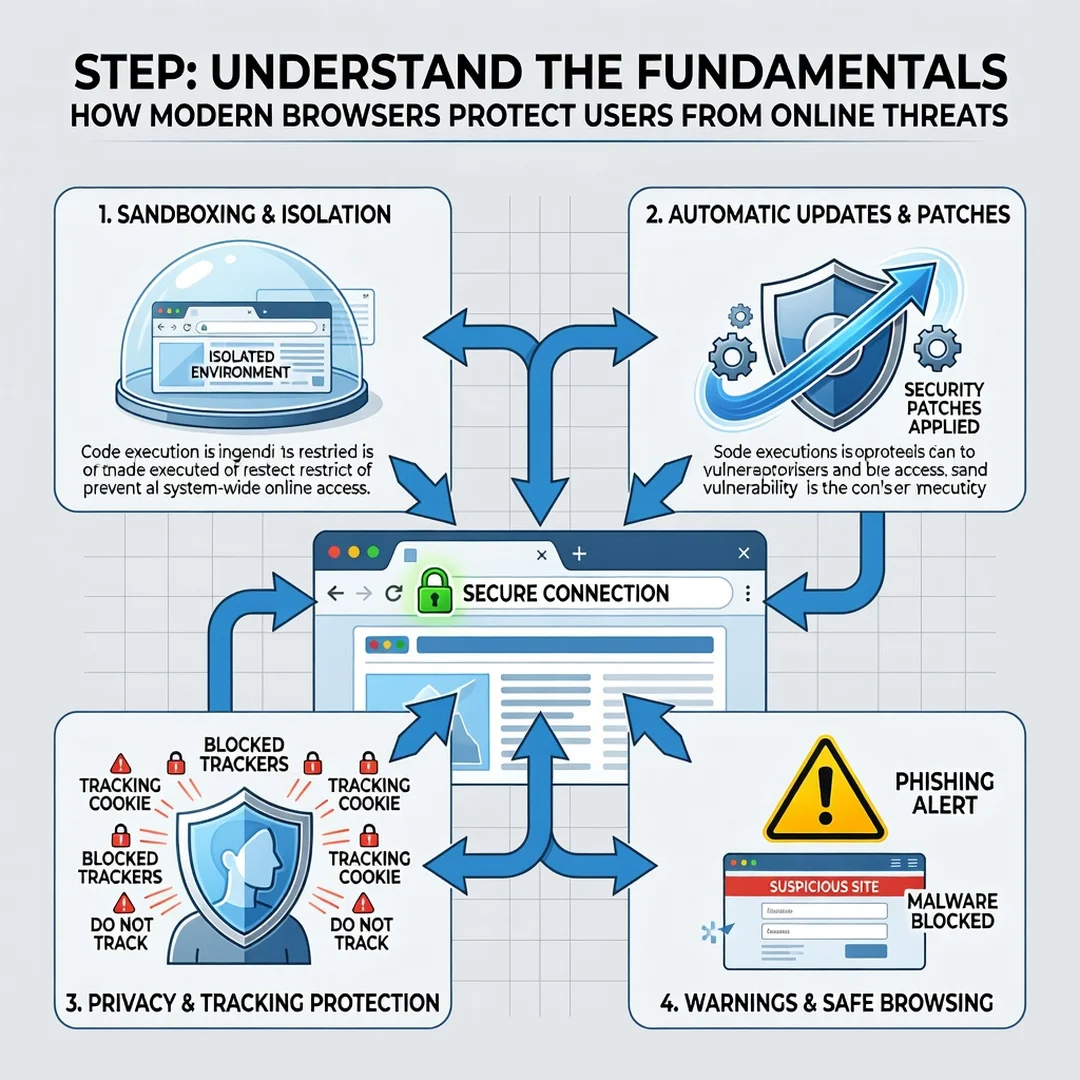
Step 1: Understand the fundamentals
Learn what sandboxing, HTTPS, Safe Browsing, and permissions actually do. Knowing the purpose behind each feature makes the remaining steps faster and more intuitive.
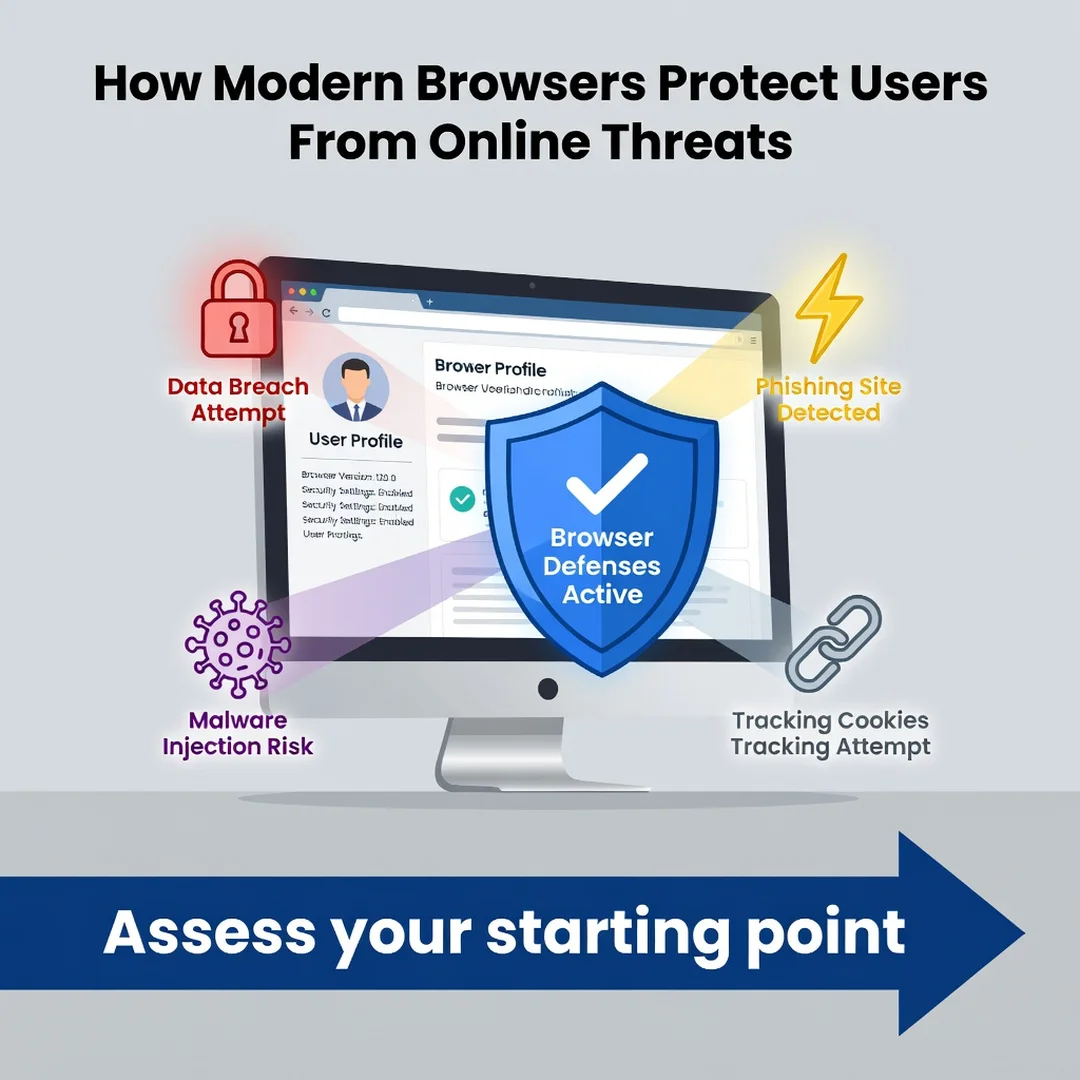
Step 2: Assess your starting point
Open your browser settings and check your current update status, protection level, cookie settings, and installed extensions. Note anything that is disabled, outdated, or unfamiliar.
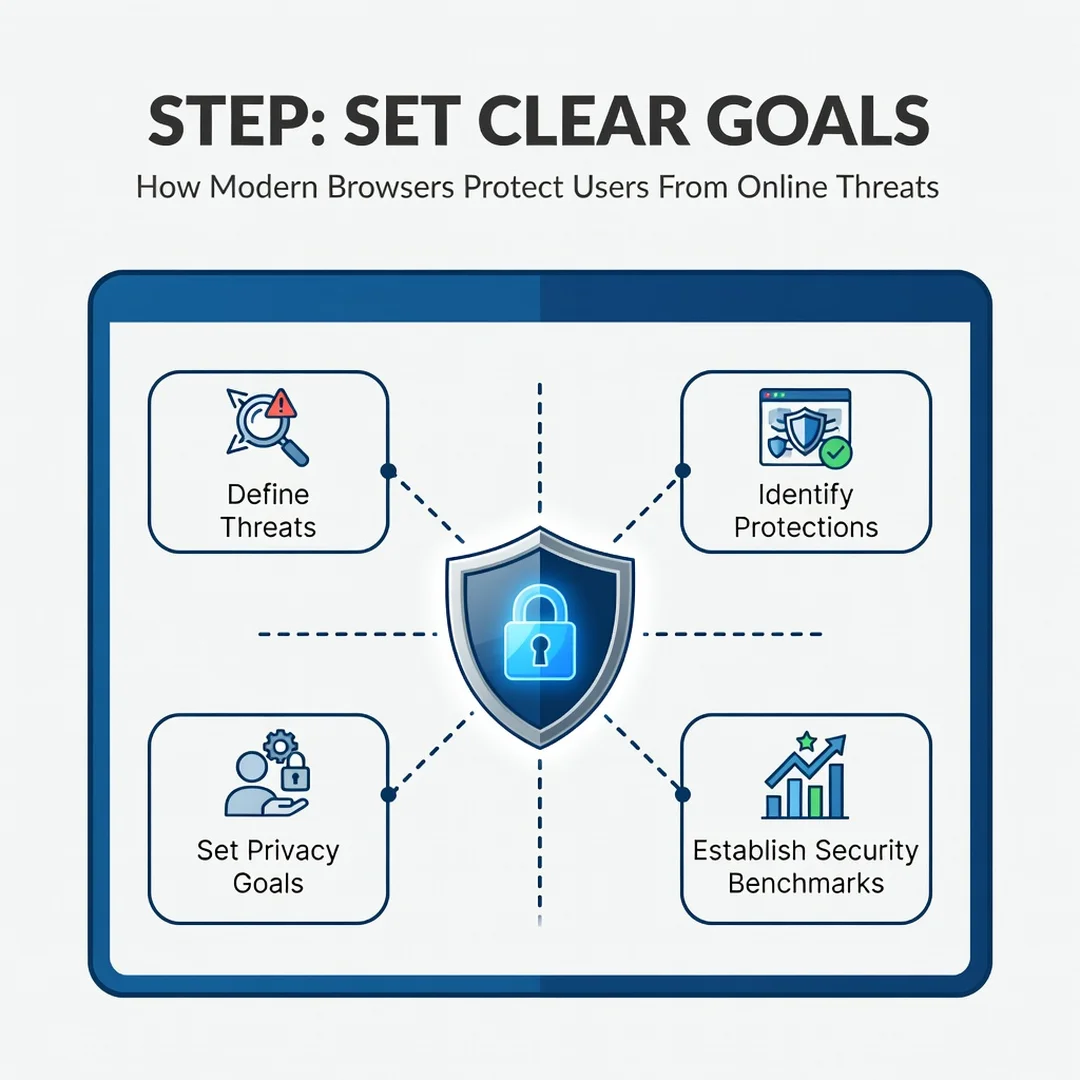
Step 3: Set clear goals
Decide what you want to achieve, such as blocking trackers, avoiding phishing, or securing a shared family computer. Specific goals make it easier to choose settings that match your needs.
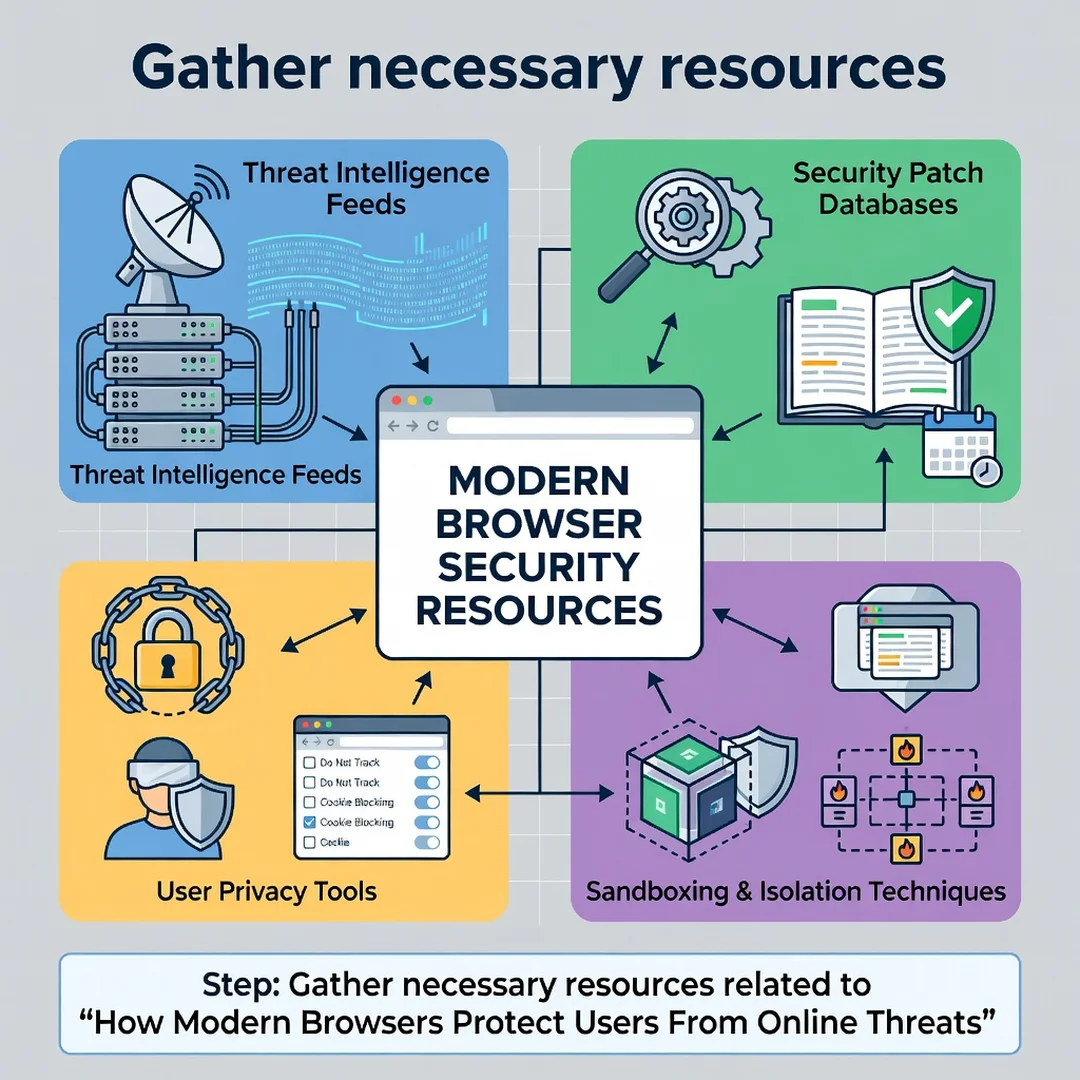
Step 4: Gather necessary resources
Collect what you need: a password manager, a list of accounts to secure, and a few minutes to review permissions. If you manage devices for others, plan a short walkthrough for them as well.
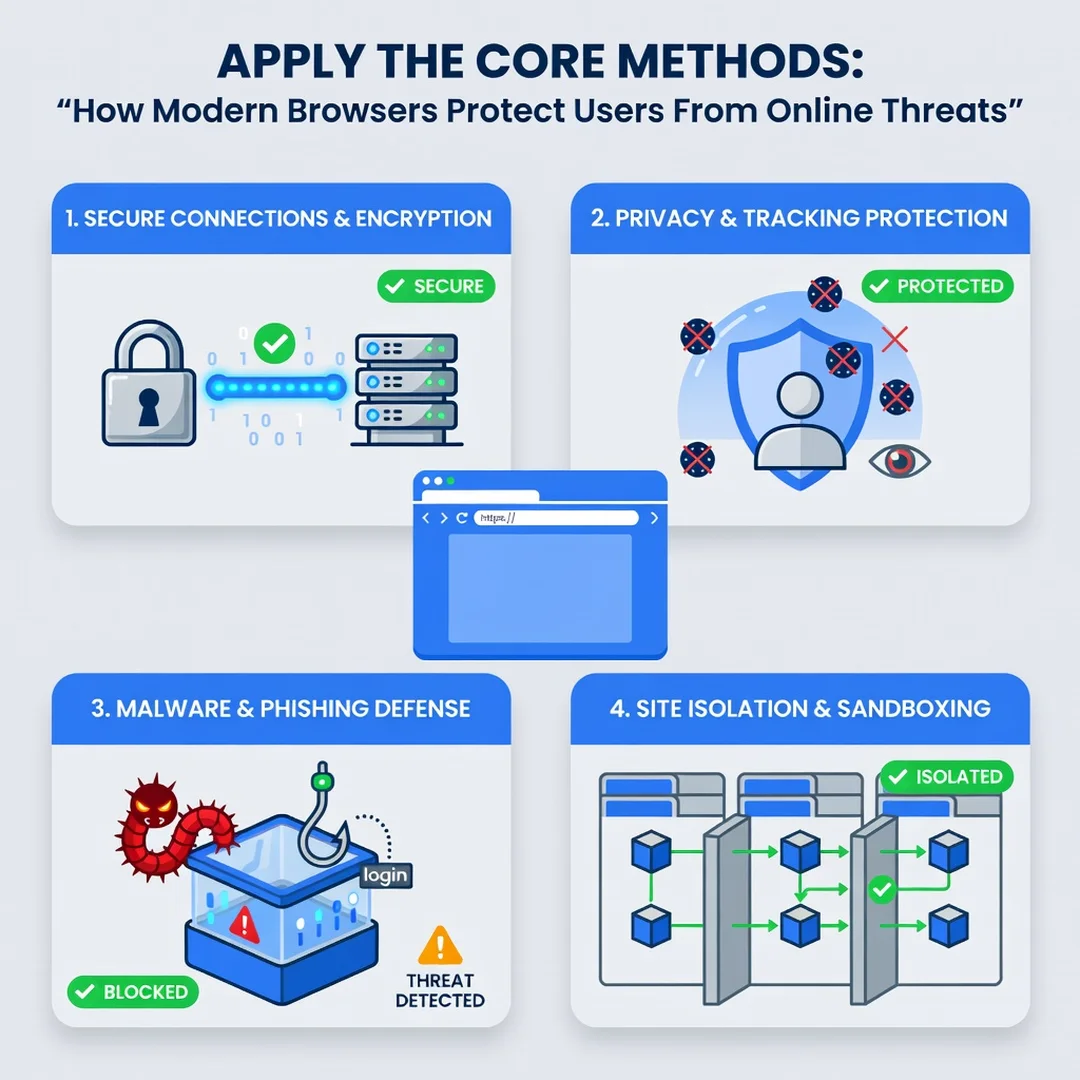
Step 5: Apply the core methods
Enable automatic updates, turn on enhanced Safe Browsing, block third-party cookies, review permissions, and remove unused extensions. Then test your setup by visiting a known site and confirming warnings and protections appear as expected. Revisit these settings every few months, because browsers add new protections and your habits change.
FAQ
What should I know about How Modern Browsers Protect Users From Online Threats?
You should know that browsers defend you through several layers at once: process isolation, encrypted connections, reputation-based blocking, permission prompts, and rapid updates. No single feature is enough on its own, and none of them replace cautious behavior. The most important takeaway is that defaults are strong, but enabling automatic updates and enhanced protection makes them stronger.
Who is this guide for?
This guide is for anyone who uses a web browser daily, including students, remote workers, parents managing family devices, and small business owners. It assumes no technical background and focuses on actions you can complete in minutes. If you want practical, durable protection without complicated tools, this is written for you.
Conclusion
Modern browsers pack decades of security engineering into software you already use. Sandboxing, encryption, reputation lists, permission controls, and fast updates work together to block many common threats before they reach you. Understanding the fundamentals of How Modern Browsers Protect Users From Online Threats helps you make informed decisions, and reliable information and consistent habits lead to better long-term outcomes. Start with automatic updates and enhanced protection, review permissions and extensions regularly, and treat warnings as meaningful signals. A few small changes today can prevent significant problems tomorrow.
Frequently Asked Questions
What should I know about How Modern Browsers Protect Users From Online Threats?
This guide covers the essentials of How Modern Browsers Protect Users From Online Threats with practical steps you can apply right away.
Who is this guide for?
Anyone looking for a clear, structured overview without unnecessary complexity.
You now have a solid foundation for How Modern Browsers Protect Users From Online Threats. Apply the best practices above and revisit this guide as your needs evolve.